Edit
The cursor
Shotmaxxing records where the cursor goes and draws it again in the editor, so you can make it bigger, smoother and easier to follow after you've recorded. Press 2 for the Cursor tool.
1 min readImprove this guide
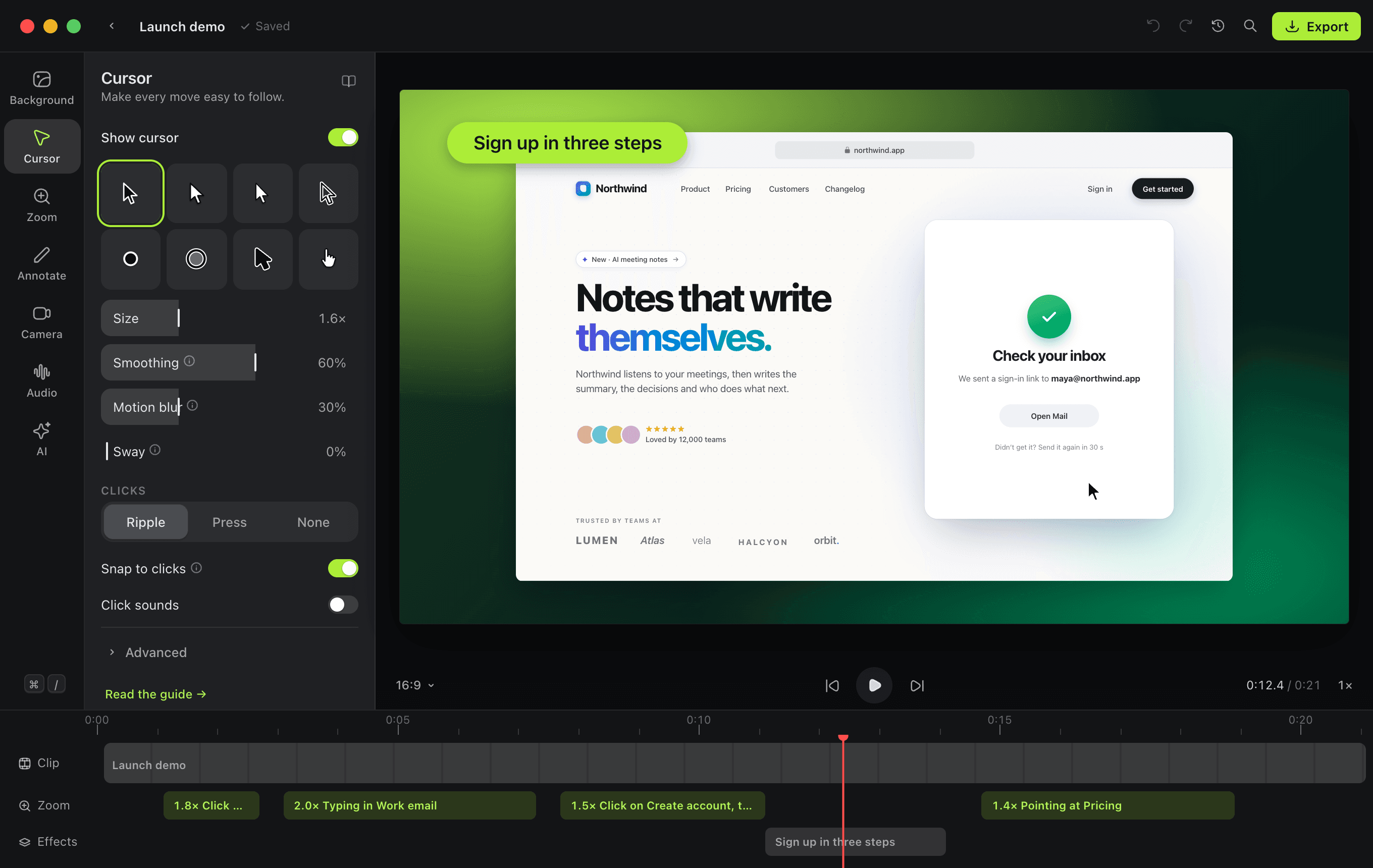
Size and movement
| Setting | What it does |
|---|---|
| Show cursor | Turn it off to hide the cursor from the whole video |
| Style | Eight cursors, picked from tiles: macOS, macOS white, Windows, Outline, Dot, Ring, Bold and Hand |
| Size | 1× to 3× the normal size |
| Smoothing | Irons out shaky movement, so the cursor glides between clicks |
| Motion blur | How much of a trail fast moves leave, the way a camera would see them |
| Sway | Leans the cursor into fast sideways moves, like a pen on paper |
| Snap to clicks | Near misses land on the button you meant |
| Hide when still | Fades the cursor out while it isn't moving |
Clicks
| Setting | What it does |
|---|---|
| Click effect | Ripple, Press, or None |
| Click bounce | With Press: how far the cursor shrinks on a click |
| Bounce speed | With Press: how quickly it springs back |
| Click sounds | A soft click on every click |
Extras
| Setting | What it does |
|---|---|
| Spotlight | A soft light around the cursor, for busy screens |
| Loop to start | Ends where it began, so GIFs loop without a jump |
All of this is drawn at export time from the recording's data, so you can change it as often as you like without recording again.
Put it to use
- Product demosRecord your product once and Shotmaxxing adds the zooms, smooths the cursor and frames it on a background. Free and open source, for Mac.
- Tutorials and docsRecord clear software tutorials with automatic zooms, a cursor that is easy to follow, captions made on your computer, and GIFs and screenshots for your docs.